How to build a prompt library your team will actually use
A library of prompts only earns its keep when the team actually opens it. A practitioner walkthrough on what to save, how to format it, and how to keep the strongest prompter on your team from being its only prompter.


Jason Kamara
November 9, 2025 · 4 min read
You have been using ChatGPT or Claude long enough that you have a handful of prompts that genuinely work. They live in a Google Doc, a Notes file, three Slack DMs to yourself, and the back of your head. Every time you need one, you rewrite it from memory and lose the version that took you twenty minutes to dial in last month.
That is the gap a prompt library closes. Not a fancy one. Yours, and ideally one your team can pull from too. The trick is knowing what belongs in it, what does not, and how to format a saved prompt so it still works two months from now when you have forgotten what you were thinking when you wrote it.
Why most personal prompt libraries quietly die
Most prompt libraries fail the same way. Someone gets excited, dumps forty prompts into a doc, shares it with two colleagues, and nobody opens it again. The prompts are too generic, too long, or too tied to one specific moment to be reusable. The library becomes another tab nobody clicks.
The version that actually works is smaller and stricter. Ten to fifteen prompts you genuinely use, written so you can drop them into an AI tool with one or two edits and get a usable result. If a saved prompt needs ten minutes of editing every time, it is not saved, it is a starting point you wrote down.
There is a second failure mode worth naming. The consumer versions of ChatGPT, Claude, and Gemini do not really let you share prompts with a teammate. You can paste one into Slack, but there is no shared library, no version control, no way for the strongest prompter on your team to quietly raise the floor for everyone else. Team and Business plans help, but many small teams do not have them. So the best prompt on your team lives in one person’s head, and when that person is on vacation, the team writes worse prompts.
The four-step method for building a library you’ll actually use
Step 1: Audit one week of your real AI use
For five working days, keep a running note of every meaningful prompt you write. Not the throwaway questions. The ones where you actually got something useful back, or where you tried three times to get something useful and finally landed it.
At the end of the week you will have somewhere between eight and twenty prompts. That is your raw material. Most of them will not survive the next step.
Step 2: Keep only the prompts you’ll use again this month
Ask one question of each prompt: will I do this kind of task again in the next month? Drafting a follow-up email after a sales call: yes. Summarizing a specific PDF you will never see again: no. The library is for recurring work, not one-offs.
Throw out the rest without ceremony. A library of six prompts you will use weekly beats one of thirty you will use never.
Step 3: Rewrite each prompt into the same four-part format
A prompt scribbled in a working session has too much of that session baked into it. Rewrite each saved prompt to four parts:
- Role. Who the AI tool is acting as. “You are an experienced B2B sales manager.”
- Task. What you want done, in one sentence.
- Inputs. The variables you will paste in each time, marked clearly. [CALL NOTES], [PROSPECT NAME].
- Output format. What the result should look like. Length, structure, tone. “Three short paragraphs. Plain language. No bullet points.”
Output format is the one most people skip and the one that matters most. Without it, the same prompt produces a one-line answer on Monday and a six-paragraph essay on Thursday. With it, you get the same shape every time, and you only edit content.
Step 4: Test each prompt twice with different real inputs
A prompt that works once might be coincidence. Run each one with two different real inputs before it earns a slot in the library. If the second run produces something noticeably worse, the prompt is underspecified. Tighten it and test again.
A worked example: from rough draft to saved prompt
Here is the rough version, written mid-task:
Write a follow-up email to the client we just talked to, mention the pricing concern, sound friendly but professional, keep it short.And here is the saved version after the rewrite:
You are an account manager at a B2B services firm writing a same-day follow-up email after a discovery call.

Task: draft a follow-up email to the prospect named in [CALL NOTES] that acknowledges the specific concern they raised, restates the next step we agreed on, and confirms timing.

Inputs: [CALL NOTES] (raw bullet points from the call).

Output format: under 150 words. Three short paragraphs. Warm but not casual. No subject line, no signature. Plain prose.The rough version produces something different every time. The saved version produces the same shape, and the only thing you edit is the call notes.
Where this approach falls down in practice
Two failure modes show up most often.
The first is over-engineering. A prompt with eight parameters and a 200-word system message is harder to maintain than the task it automates. Resist the urge to add more.
The second is letting the library go stale. Every six weeks, open it and delete two prompts you have not used. A library that grows forever stops being a tool and becomes an archive.
Get organized and collaborate with our free prompt library
The fastest next step, if you already have prompts in a doc somewhere, is to pick three and rewrite them tighter. That alone will tell you whether your current prompts are saved or just written down.
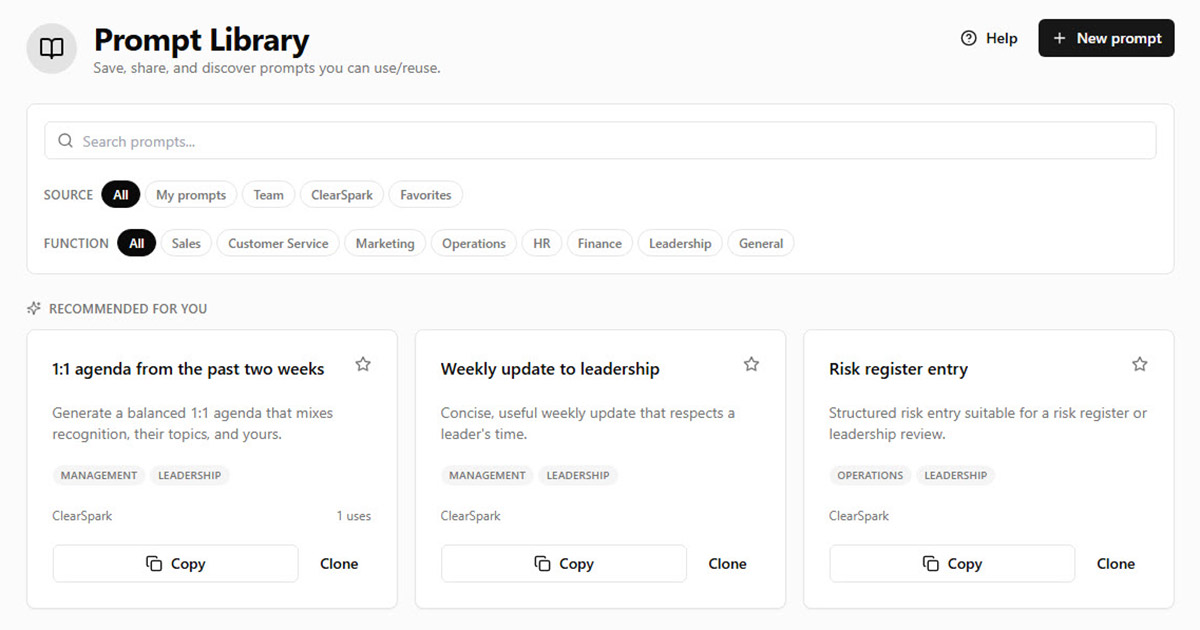
When you are ready to build the library properly, the Prompt Library in the ClearSpark AI Adoption Hub gives you a structured place to do it. It comes with a starter set of prompts you can clone, edit, and save as your own. The piece that is missing from consumer ChatGPT, Claude, and Gemini is built in: invite your teammates and you all draw from one shared library, see each other’s saved prompts, and build on the ones that work. The strongest prompter on the team raises the floor for everyone else, instead of being the team’s only prompter.
If you want to sharpen a specific prompt before you save it, the Prompt Enhancer in the same Hub draws from more than thirty established prompting techniques and applies the ones that fit your task. Useful for the prompts that almost work but do not quite.
A library you actually open is worth more than a library that looks comprehensive. Start with the prompts you already use, format them once, and let the team build on them from there.
Stop reinventing your best prompts.
Create a free account on the ClearSpark AI Adoption Hub to use the Prompt Library and Prompt Enhancer.
Found this useful?
Share