Where your ChatGPT prompt data actually goes
ChatGPT isn't one product. It's several, and only the business tiers keep your prompts out of training by default.

Jason Kamara
December 10, 2025 · 4 min read
Buried in OpenAI’s Data Usage for Consumer Services FAQ, between a question about phone numbers and a question about third parties, sits one sentence: “Please do not enter sensitive information that you would not want reviewed or used.” That’s the warning, in full. No callout, no font change, no required acknowledgment. It’s aimed at the millions of Free and Plus accounts being used inside companies right now, and most of those users have never seen it.
The question your team keeps trying to answer isn’t whether ChatGPT is safe. It’s which ChatGPT, which setting, which data, and where the logs sit.
ChatGPT isn’t one product
OpenAI ships consumer plans (Free and Plus) and business plans (Business, Enterprise, and several specialized variants). They share a model. They don’t share a privacy posture.
On Free and Plus, the documentation is direct: “We may use content submitted to ChatGPT and our other services for individuals to improve model performance.” Users can turn that setting off, and we’ll cover how, but the default is on.
On Business and above, the default flips. The enterprise privacy page commits, in writing: “By default, we do not train our models on your data.” A Data Processing Addendum is available, and the DPA is the document compliance auditors actually ask for. The Plus plan, sold as a consumer product, cannot sign one.
If your team is using Plus accounts for client work, the protection you think you have isn’t there. Plus is sold under consumer terms for personal use, and the contract behind it does not carry the no-training default or the DPA that the business tiers do. It’s the wrong tier for the job.
Where your prompt actually goes, step by step
The journey of a prompt has four stages. It leaves your browser, lands on OpenAI’s servers, gets converted into a response, and then either disappears into a retention queue, gets used to improve future models, or both. Which of those happen to your team’s prompts depends on the tier you’ve paid for and a handful of settings most people never visit.
What gets sent and what’s stored
Every word in the prompt box travels with the request, and so does everything around it: the files you attach, the images you paste in, the running conversation history above the new message, and whatever ChatGPT’s memory feature has been told to remember about you. All of that lives, in the wording of OpenAI’s consumer data FAQ, on “OpenAI systems and our trusted service providers’ systems in the US and around the world.” Deleting a conversation removes it within thirty days, “unless we are legally required to retain them,” which is the FAQ’s way of saying that a subpoena overrides your delete button.
When it’s used to train the model, and when it isn’t
Training behavior turns on which product you’re using. Free and Plus accounts feed prompts back into model improvement by default, and the consumer is expected to opt out if they care. Business, Enterprise, and the other organizational tiers do the opposite: they’re contractually committed to not training on customer inputs unless the customer explicitly opts in. The asymmetry is worth holding onto. On a consumer tier, no-training is a setting you can flip in your account. On a business tier, no-training is a clause in a contract somebody on your side has already signed.
How to disable training in your account
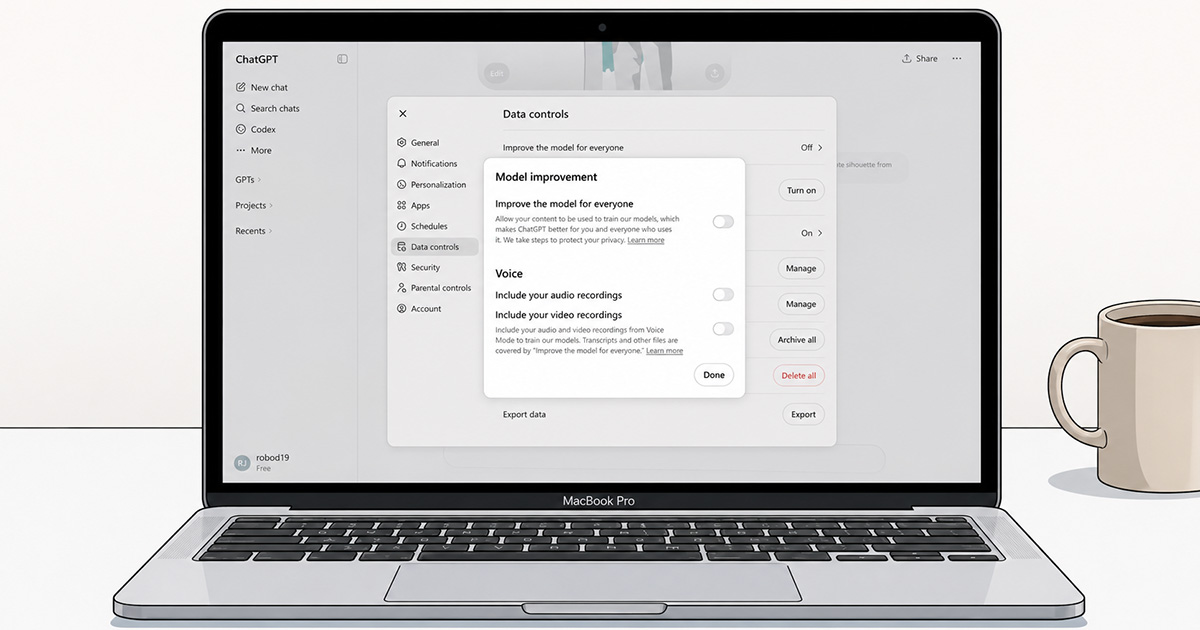
On the web, the path is short. Open ChatGPT while signed in, click the profile icon at the top right, choose Settings, then Data controls, then turn off the toggle labeled “Improve the model for everyone.” The setting follows your account across web and mobile, and you can switch it back later if you change your mind.
Two caveats are worth naming before anyone declares the problem solved. The first is that the toggle controls training and nothing else. Your conversations still appear in your chat history, still sit on OpenAI’s servers, and only leave when you delete them, with up to thirty more days of retention after that. Temporary Chats are the exception in the consumer product: they’re deleted after thirty days, are never used for training, and are never written to your history. The second caveat is that this toggle is a consumer-tier control. On Business and the other organizational tiers, no-training is already the default state, and the setting isn’t exposed separately because it isn’t separately needed.
Which data goes where
Most workable policies at small firms classify data into four bands, and each band has a different answer for what’s safe to put into which version of ChatGPT.
| Data class | Examples | Free or Plus, training off | ChatGPT Business or higher |
|---|---|---|---|
| Public | Press releases, website copy, public research | OK | OK |
| Internal | Operational memos, non-confidential meeting notes, drafts | Not appropriate for business work | OK |
| Confidential | Client projects, financials, strategic plans, customer lists | No | OK with anonymization, human review |
| Highly Sensitive | Employee personal data, signed contracts, regulated records | No | Legal review required, often avoid cloud LLMs entirely |
Across the assessments, workshops, and project engagements ClearSpark runs with small and mid-sized teams, the same gap surfaces nearly every time. Two or three people on the team are already pasting client documents, financial spreadsheets, or HR notes into a Free or Plus account, and no one has ever told them not to. The behavior usually isn’t recklessness. It’s that the question of “is this safe” has never been answered out loud, so the working default has quietly settled into something like “it’s probably fine.”
The table above is half of the rule. The other half is anonymization, done before the prompt is composed rather than after the fact. Strip names, company names, contact information, identifying dates, and account numbers. If a sentence still identifies a real person or client after redaction, the redaction wasn’t aggressive enough and needs another pass.
Turn this into the team’s policy
The four answers we’ve walked through (which tier, which setting, which data, where the logs sit) aren’t a policy yet. They’re four observations sitting in your head, and the team has no way to follow what you haven’t written down. Putting them on a shared, dated, signable document is what turns the observations into a rule the team can apply without checking with you every time.
We’ve developed an interactive AI Usage Policy Generator that takes those four answers and renders them into a multi-section document the team can read, acknowledge, and revisit on a cadence you set. You answer a few questions about your approved tools, jurisdiction, and risk posture, and the tool returns a structured policy you can edit inline, publish to your organization, and hand to outside counsel for review.
Draft your team’s AI usage policy.
Use the AI Usage Policy Generator on the ClearSpark AI Adoption Hub. Get a defensible first draft in minutes, not months.
Found this useful?
Share